Showing posts with label technology. Show all posts

Wednesday, September 25, 2013

BUMP


Do you ever take pictures of your class on your phone because a camera wasn't handy only to have them languish on your phone because there are too many to email them to yourself and you are too lazy to actually hook up your phone to your computer?

You are looking at the worst offender in the history of all cell phone camera users. In fact, when I couldn't find my phone at school a couple of weeks ago (and yes, I freaked out. A LOT.) the first thought that came to my mind was all of the pictures I had on it including the ones I took of the kids on the first day of school. (Well, I was a bit worried about my personal pictures as well.)

Let me introduce you to:

BUMP
Bump is an app that allows you to transfer selected pictures from your phone to your computer without connecting a cord to it. It is internet based so you can do it on any computer. Pretty slick, huh?

I just used it to download the 26 pictures that I took of my students on the first day of school so I could email them from my desktop computer (saving my phone data) to our reading specialist so she could use them for a computer reading program we will be starting next week. Needless to say I was IMPRESSED. Try it, you may like it!


Sunday, June 10, 2012

Free Clip Art Online

Have you ever wondered where some of the graphics come from that people are using for their lessons? (Like this beaut of a smartboard file!)


Babbling Abby shared this tip about Clker.com and I have used it ever since.

Click here for Clker.com.

It is a bit tricky to use though. (Camille, this is for you! ;) )

When you go to the main page, you will see a lot of stuff. Hey, this is free so it isn't hard to deal with a bit of advertising, right? All you need to worry about is this part of the page. It is right at the top so it is easy to find.


Type what you are wanting to find in the search bar and click "search." Sometimes this box can be very light in color so look for it.

After you wait for a bit (fingers crossed for a good internet connection), this is what you will see.


 Don't panic! Scroll down a bit and you will see what you are looking for (hopefully - I have only had a couple of times when I have had to look somewhere else for the image I wanted).


 Click on the picture you want. If you don't like any of those images sometimes there are additional pages of images OR you can click on one that is close and you can see variations of that graphic that might work better for you.

After you make your selection is where it gets a bit tricky. You want to be able to download the image to your computer so you can insert it into the program you are working in (for me that happens to be smart notebook at the moment - summer projects, don't ask, I didn't realize how big of a project it would be.)


Click on the word "Download."


Here you are given several different options: easy embed, download to computer with size options, and other formats available.

I have found that MOST of the images I have downloaded are png files, which are my favorite. I don't know much about the other formats, so I'm not sure if or when you would use them. I usually select the medium size just because. (I know enough about computers to get myself in trouble, it is a good thing that my dad and little sister are patient with me.)

This is what you will see after you choose your size.


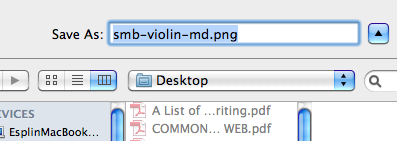
You will need to save the image to your computer. I have a mac, so this is what you will see if you have a mac.


Choose "Save Page As..." Then, because there are soooooo many images on Clker you are going to want to delete some of the extra numbers and words that are attached to it. I always choose to save the images to my desktop because I am lazy and don't want to have to find them later.


 You now have some new clip art to insert into your document. Enjoy!


Wednesday, April 25, 2012

Spelling City

My sister-in-law, who teaches first grade in Kane County, shared this site with me a few years ago.

Visit Spelling City
Spelling City is a free site where your students can practice their spelling words online. Teachers (or parents) can create an account and enter the spelling words they would like their students to practice. You can even save the lists and only allow the students to work on the list you would like. For example, one fall I sat down and entered our entire year's worth of spelling lists. Then, when it is a new week I simply log on to my account and "open" the list I would like the kids to work on.

There is a pay portion of the site, but because we don't have any student computers in our classrooms yet I haven't looked into it very much. From what I have noticed the kids can even take their tests on the computer and it is scored for you. Pretty cool.


Monday, November 7, 2011

iPad2

We are getting one of these for each of our classrooms:


I know I am super excited. When I heard that our grant was funded, I was so excited I yelled for joy. Right in the middle of class. No kidding! Then I realized that it was only partially funded and we had to figure out how to come up with a third of the money. Today our principal told us he came up with a way to help us out with getting our grant fully funded. We are feeling pretty blessed!

If we are lucky, they were ordered today. Fingers crossed that they will be here before Christmas break.

We have a few ideas of what we would like to use them in our classrooms. If you are lucky enough to have one, how do you use it in your classroom? Do students get to use it, if so how? (Remember we are blessed with ONE iPad2 each.) Are there any thing we can use them for beside "apps"?


Pin It button on image hover